Most content plays automatically. You should be able to view live streams and recorded videos without installing any additional software or doing anything special. If you are experiencing any issues watching content, please read the problems and solutions below.
Try watching at a lower quality
Many streams are now available in multiple bitrates. All streams allow for multiple bitrate broadcasting. If you are watching on mobile the bitrate will adjust automatically. If you are watching on a laptop / desktop computer, you can manually adjust the bitrate you are watching.
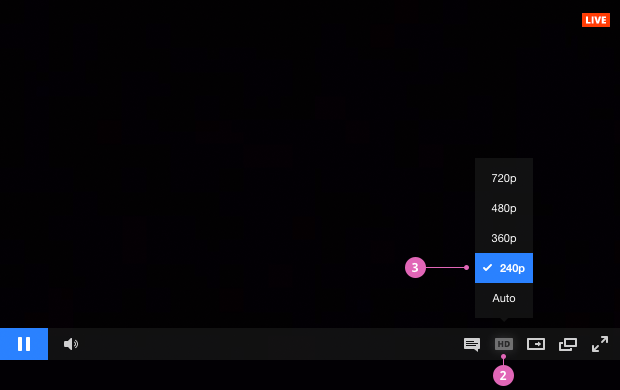
- Hover over the player
- Click on the icon that says HD, and you should see options for 720p, 480p, 360p or 240p
- Select 240p and try watching on that. You may notice a lower quality video image, but the stream should be easier for your bandwidth and CPU to playback smoothly. If it is smooth at 240p, you can try the next step up and so on.
Update Browser
We recommend viewing stream on an up-to-date version of Firefox or Chrome. Go here to get the latest version of Firefox or Chrome. One benefit of Chrome is that it already has Adobe Flash installed by default. If you need to use Internet Explorer and are having issues, please reach out to us directly for support.
Install and Update Adobe Flash
Go here and follow the steps outlined on that page to make sure that you have an up to date version of Adobe Flash Player installed. Do this on the same computer and browser that you are trying to watch the stream on.
Check Internet Connection and Bandwidth
You can only watch a live stream if you have a consistent internet connection. Shared wi-fi networks, like what you might find at a coffee shop, are often too unreliable to view a live stream without interruption. We recommend viewing on the best possible connection you can find.
You can run a speedtest here to determine your download speed. It can be helpful to run the test several times to see if you are getting consistent download speeds. To view an 720/HD stream, you need download speeds at around 1.5-2Mbps.
When possible, plugging in via an ethernet cable can help you avoid the possibility of an inconsistent wireless connection.
Check Computer Resources
A possible cause of choppiness or pausing playback is insufficient CPU resources on the broadcaster or the viewer side. Older computer's graphics cards may have a difficult time encoding and decoding live and recorded video. We recommend shutting down all other applications and browser tabs / windows while broadcasting and viewing if you are experiencing playback problems.
Watching content can be fairly CPU intensive, especially the HD content. It is best to have a dual core system that is less than two years old that has a discrete (non-integrated) graphics card. Intel Core i3, i5 or i7 CPUs or the AMD equivalent are preferred. Netbooks or low power systems should be avoided. You can check the CPU load in the Task Manager (Windows) or Activity Monitor (Mac OS).
Disable or Enable Hardware Acceleration
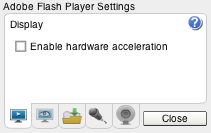
Hardware acceleration means that your computer's graphics card is used to render the stream on your screen rather than decoding and rendering in software. The advantage is typically smoother playback, less battery drain and less overheating. In some cases, hardware acceleration does not function properly and the stream will go black or you will see a "stuttering" or "skipping" effect where everything is jittering. If you see this symptom or are seeing low frame rate playback, try enabling or disabling hardware acceleration using these steps:
- Right click on the player
- Choose settings
- Click on the far left tab that looks like a screen
- Check or uncheck the box that says "Enable Hardware Acceleration"
- Click close
- Refresh the page
Check that streaming content is not blocked by an ad-blocker, firewall, or being filtered on your local network.
Particularly if you are watching at a school or in a corporate environment, it is possible that a firewall or content filter is blocking content. If you see a black screen instead of the live video stream, this is one of the possible causes. If you have any ad-blockers installed, disable those in your browser. If you can talk to your network administrator or control it yourself, the following ports need to be enabled to allow stream viewing through your firewall. If you are using a VPN, try disabling the VPN and viewing while not connected with a VPN.
- Outgoing UDP destination port 53 to your nameserver or any IP for domain name resolution (DNS)
- Outgoing TCP destination port 80, 443 to any IP for web
- Outgoing TCP destination port 1935 to any IP for streaming
Mobile Viewing
Most streams are available for viewing on iOS and Android devices.
The following tips are recommended for mobile viewing:
- Do not use private browsing mode on Safari on iOS
- Use Wi-Fi rather than 3G or 4G connection whenever possible